The AI AdoptionFree AI pre-audit

Where should your business
start with AI in 2027?

Suggested by Google in Workspace Studio
Pick one

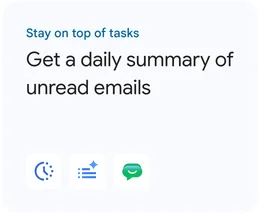
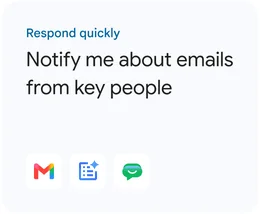
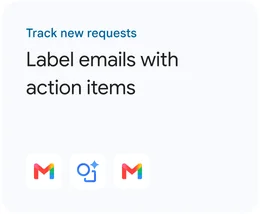
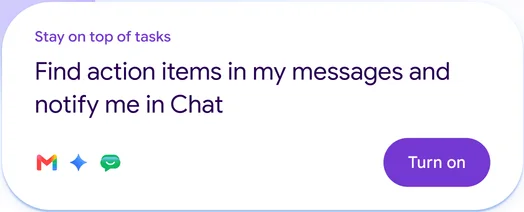
Task cards from Google’s page on AI tools for business. The label is ours.

If your business runs on Microsoft 365 or Google Workspace, its business plan already includes an AI assistant. Copilot Chat comes with qualifying Microsoft 365 business plans, and Google has added Gemini to its Workspace business editions. The place to start in 2027 is one task your team repeats every week. You hand it to that assistant with your rules written down, and a person checks the result before it goes out.

By The AI Adoption · Published on 22 November 2026 · Sources: Microsoft, Google and Anthropic, read on 22 November 2026

Start from one task your team repeats

The first task to hand to AI is one your team already does every week, the same way, from information the assistant can reach. Pick the task before the tool. The task decides what the assistant needs to read and who checks its work.

  • It comes back every week The weekly summary, the replies to the same questions, the notes after each job.
  • It follows rules you can write down How you word a quote, what a report contains, which emails need an answer today.
  • Its information is where the assistant can read it In the inbox, the shared drive or the system it is connected to, not in someone’s head.
  • A person can check the result Before it goes to a customer, a supplier or the accounts.

Google’s own suggestions in Workspace Studio pass these tests: a daily summary of unread emails, a note when a key person writes, a label on emails that need action. They are small, and each one takes a daily chore off the person who did it by hand.

A task that fails one of these tests can wait until your first task runs well. A quote that depends on a site visit is one, and so is a decision only the owner can take. Our page on handing a repetitive task to AI follows one task from start to finish.

Use the assistant you already pay for

Before buying anything, look at what is already in your plan.

Microsoft 365Copilot Chat

In the plan

For business users on a qualifying Microsoft 365 business or enterprise plan

With the add-on licence

It also works from your meetings, emails, chats and files, not only the files you upload

Google WorkspaceGemini

In the plan

Gemini in the side panel of Gmail, Docs, Sheets, Slides, Drive and Chat, depending on the edition

For a repeated task

Gems for repeatable tasks, and Workspace Studio flows, included in Business Standard

ClaudeOn a Team or Enterprise plan

In the plan

A separate subscription, for teams that work in Claude

For a repeated task

Organisation instructions that Claude follows in every conversation

Copilot Chat is open to anyone on a qualifying Microsoft 365 business plan. Without the add-on licence it works from the web and from the files someone uploads to it. With the licence, it reads your meetings, emails, chats and files, and Copilot in Outlook is included either way.

That difference decides the first task. A summary of a document someone uploads works without the licence. A weekly summary of what happened in the inbox and the meetings needs it. Our comparison of Microsoft Copilot and Claude for a business goes through the rest.

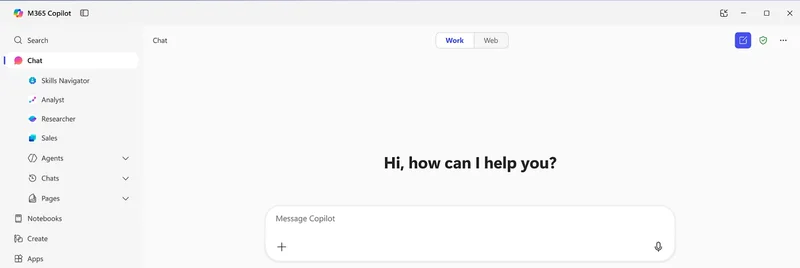
The Microsoft 365 Copilot app on the Chat page, with a Work and Web switch above the message box, and Analyst and Researcher in the left menu.
Copilot Chat, from Microsoft’s page on Microsoft 365 Copilot for business.

Write your rules down once

An assistant that starts every task from a blank chat needs the same explanations every morning. So write the rules of the task once, in a place the assistant reads before it starts: the tone of your replies, what a report contains, what it must never send.

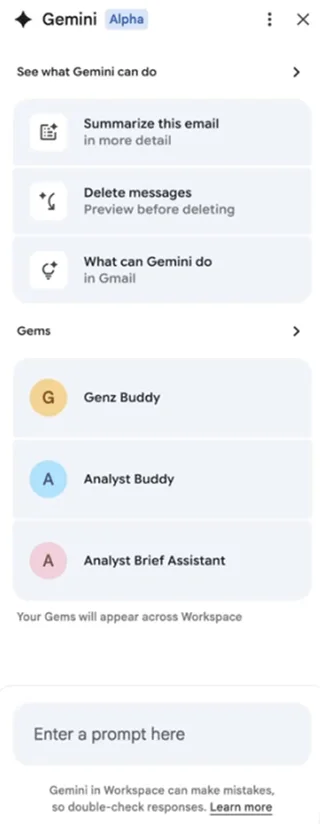
In Google Workspace, that place is a Gem, which Google presents as an AI expert you set up once for a repeatable task. A Gem you make appears across Workspace, in the Gemini panel of Gmail and the other apps.

In Claude, an owner on a Team or Enterprise plan sets organisation instructions, up to 3,000 characters, that Claude follows in every conversation in the organisation. Changes can take up to an hour to apply.

The Gemini panel in Gmail, with suggestions such as summarise this email, and below them a list of Gems, such as an analyst assistant.
The Gemini panel in Gmail, from Google’s page on AI tools for business.

Every morning, without written rules

  • The same corrections, typed again
  • Each person words it their own way
  • The result depends on who asked

Rules written once

  • The assistant starts from your rules
  • Everyone gets the same format
  • You correct the rule, not each answer

Decide what it may do and where a person approves

Before a task runs every day, settle two things: what the assistant can open, and what it can do without a person. Google says Gemini only reads the Workspace content that the person using it can already open. A shared folder open to everyone is open to their assistant too, so tidy access first.

  • Read the emails and files of the task
  • Draft the reply, the summary or the report
  • Send it, once a person has approved it
  • Pay, delete or sign: a person does it

For a first task, the assistant drafts and a person approves before anything is sent. A draft takes little time to check, and checking it is how the team learns to trust the assistant on that task.

When a task needs the assistant to act in several apps on its own, it becomes a question of agents and automations. Our page on choosing between an AI agent and an automation helps you see which one a task needs. Our guide on adopting AI securely covers access and approvals.

If you get help to start

If you bring in help to start, these are the questions to ask, whoever you ask.

Questions to ask

  • Do you start from our work, or from a tool you sell?
  • Will you set up the assistant we already pay for?
  • Who decides what it can open, and where a person approves?
  • Will our team be trained on their own tasks?
  • Can we run it ourselves once you leave?

What we do

We help you and your team put AI to work in your daily operations, through practical training, custom workflows and automation. From initial setup to ongoing support.

We start from the work your team repeats, in the tools you already use. Before anything runs, we agree who can open what and where a person approves.

Our guide on how to choose an AI consultant goes further, and AI training for your team shows what training on real tasks looks like.

How we start

We start with a call about how you and your team use AI today, which assistant you already have and which task to hand over first.

How we help, who we are and how we handle security. On the blog we cover AI dashboards for business, Gemini or Claude on Google Workspace and Google’s newest Gemini models.

The first step with us is a free AI pre-audit

45 minutes to explore where AI could help your business and what to put in place first. With or without us.

Book your free AI pre-audit

Sources

Every fact about a product on this page comes from Microsoft’s, Google’s and Anthropic’s own pages, read on 22 November 2026. The screens are the vendors’ own material. Plans and features change, and details may change after publication.

  1. Microsoft Support: How Copilot Chat works with and without a Microsoft Copilot licence
  2. Microsoft: Microsoft 365 Copilot for business
  3. Google Workspace Help: Gemini AI features now included in Google Workspace subscriptions, updated on 10 November 2026
  4. Google Workspace: AI tools for business
  5. Claude help centre: Set organisation instructions

Bring your questions.

Free AI pre-audit